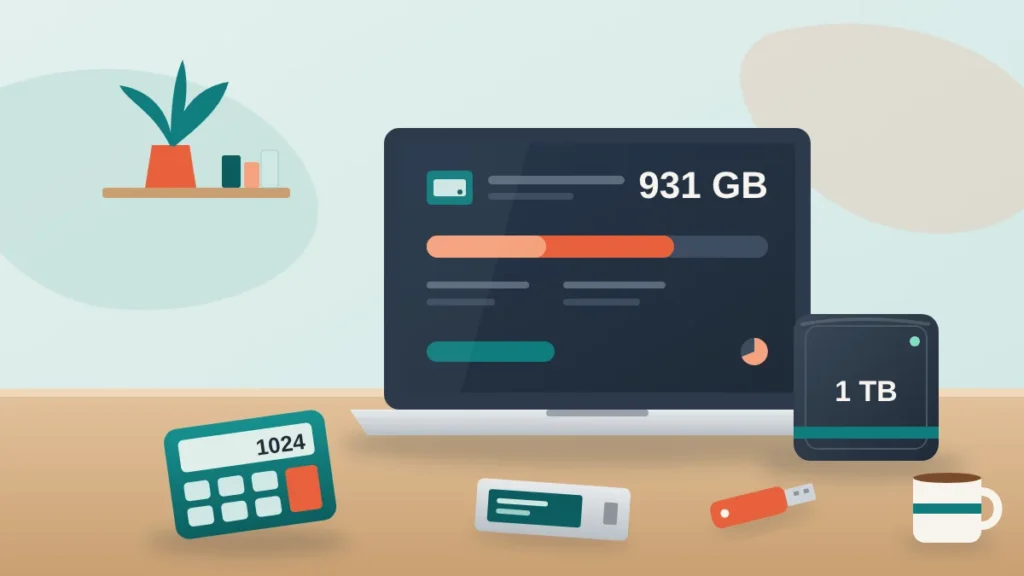
Why does a 1TB hard drive show 931GB? Because the manufacturer and your computer use different units. The drive holds 1,000,000,000,000 bytes (10¹²). Windows divides that by 1,073,741,824 (2³⁰) instead of 1,000,000,000 and still calls the result “GB”, so it reports 931.3. No space is missing.
If that sounds like a technicality, it is, but it is one that confuses almost everyone the first time they plug in a new drive. Below is the exact arithmetic, why the gap grows as drives get bigger, how Windows, macOS, Linux and phones each report capacity, and the few things that genuinely do take space away. You can check any of these numbers in our data storage converter, which shows decimal and binary units side by side.
Two ways to count bytes
A byte is a byte everywhere. The disagreement is about the prefixes stacked on top of it.
- Decimal (SI) prefixes work exactly like kilometres and kilograms: kilo = 1,000, mega = 1,000,000, giga = 10⁹, tera = 10¹². Drive makers, the International System of Units and most networking specifications use these. A gigabyte (GB) is 1,000,000,000 bytes.
- Binary prefixes step up in powers of two because memory chips are built that way: 2¹⁰ = 1,024, 2²⁰ = 1,048,576, 2³⁰ = 1,073,741,824. The correct names are kibibyte (KiB), mebibyte (MiB), gibibyte (GiB) and tebibyte (TiB).
The binary names were standardized by the International Electrotechnical Commission in 1998 precisely because people kept using “kilobyte” to mean two different things. NIST’s page on binary prefixes lays out the official definitions, and the BIPM, which maintains the SI, is clear that kilo always means 1,000. The trouble is that Windows and plenty of older software still compute in binary and print the decimal labels. When Explorer says “GB”, it means GiB.
Why does a 1TB hard drive show 931GB? The exact math
Here is the whole calculation, step by step.
- The label says 1 TB. In decimal, that is 1,000,000,000,000 bytes. The fine print on the box usually says exactly this: “1 GB = one billion bytes; 1 TB = one trillion bytes.”
- Windows wants to show the size in its version of gigabytes, which is 2³⁰ = 1,073,741,824 bytes.
- 1,000,000,000,000 ÷ 1,073,741,824 = 931.32.
- Windows prints “931 GB”. The correct label would be 931 GiB.
The gap is 1,000 − 931.32 = 68.68 “GB”, or 6.9%. But measured in bytes there is no gap at all. If you want the size in tebibytes, divide by 2⁴⁰ (1,099,511,627,776) and you get 0.909 TiB, which is why some tools list the same drive as “0.90 TB”. The binary converter is handy if you want to see why 2³⁰ and 2⁴⁰ come out to those long numbers.
Worked example: a 2 TB external drive
You buy a 2 TB USB drive for backups. Windows shows it as 1.81 TB. Check it:
- 2 TB = 2,000,000,000,000 bytes.
- ÷ 1,099,511,627,776 (bytes per TiB) = 1.819 TiB, shown as “1.81 TB”.
- ÷ 1,073,741,824 (bytes per GiB) = 1,862.6 GiB, which is what you see in Disk Management.
The apparent shortfall of 181 “GB” looks dramatic, but every byte you paid for is there.
The gap gets bigger with every prefix
Each step up multiplies by 1,000 on one side and 1,024 on the other, so the 2.4% difference compounds. That is why nobody complained much about floppy disks and everyone notices on multi-terabyte drives.
| Prefix | Decimal (bytes) | Binary (bytes) | Decimal size shown in binary units | Apparent “loss” |
|---|---|---|---|---|
| Kilo / kibi | 1,000 | 1,024 | 0.977 KiB | 2.3% |
| Mega / mebi | 1,000,000 | 1,048,576 | 0.954 MiB | 4.6% |
| Giga / gibi | 10⁹ | 1,073,741,824 | 0.931 GiB | 6.9% |
| Tera / tebi | 10¹² | 1,099,511,627,776 | 0.909 TiB | 9.1% |
| Peta / pebi | 10¹⁵ | 1,125,899,906,842,624 | 0.888 PiB | 11.2% |
Those percentages are just (1 − 1,000ⁿ ÷ 1,024ⁿ) × 100. If you want a refresher on turning a ratio into a percentage, our guide on how to calculate percentage walks through it.
What common drive sizes look like in Windows
Use this table to sanity-check a new drive, SSD or memory card. Divide the advertised size in GB by 1.0737 to get GiB.
| Advertised capacity | Bytes | Windows shows (GiB) | Windows shows (TiB) |
|---|---|---|---|
| 128 GB | 128 × 10⁹ | 119.2 GB | 0.12 TB |
| 256 GB | 256 × 10⁹ | 238.4 GB | 0.23 TB |
| 500 GB | 500 × 10⁹ | 465.7 GB | 0.45 TB |
| 512 GB | 512 × 10⁹ | 476.8 GB | 0.47 TB |
| 1 TB | 10¹² | 931.3 GB | 0.91 TB |
| 2 TB | 2 × 10¹² | 1,862.6 GB | 1.82 TB |
| 4 TB | 4 × 10¹² | 3,725.3 GB | 3.64 TB |
| 8 TB | 8 × 10¹² | 7,450.6 GB | 7.28 TB |
If your drive shows noticeably less than the figure in this table, something other than unit conversion is going on. That is when it is worth looking at partitions and the file system.
How Windows, macOS, Linux and phones report storage
The 931 GB figure is mostly a Windows thing. Other systems made different choices:
- Windows (File Explorer, Disk Management) calculates in binary units and labels them KB, MB, GB, TB. A 1 TB drive shows as 931 GB.
- macOS switched to decimal units in Mac OS X 10.6 Snow Leopard (2009). Plug the same 1 TB drive into a Mac and Finder reports 1 TB, or 1,000 GB.
- iPhone and iPad also use decimal units, so a 256 GB iPhone lists 256 GB of capacity in Settings, with the system taking a chunk of that.
- Android versions and manufacturers vary. Most recent phones report decimal capacity, and like iPhones they show the operating system as a large “System” entry.
- Linux depends on the tool. Desktop file managers often use decimal units; command-line tools such as
df -huse binary (shown as G), whiledf -Huses decimal. Some utilities print GiB and TiB explicitly, which is the clearest option.
So the same drive can honestly be “1 TB” on a Mac and “931 GB” on a PC. Neither is wrong about the bytes; they just name the units differently.
What really does take space on a new drive
Unit conversion explains the 931. A few other things explain why the free space can be a little lower again.
File system overhead
Formatting writes structures the file system needs: NTFS has its Master File Table, APFS and ext4 have their own metadata, and journaling file systems reserve room for the journal. On a freshly formatted 1 TB data drive this is small, typically well under 1 GB, so you might see “930 GB free of 931 GB”. Linux ext4 also reserves 5% of the space for the root user by default, which can be reduced on a pure data drive.
Partitions you cannot see
Laptops and prebuilt PCs ship with an EFI system partition and a recovery partition, which can take anywhere from a few hundred megabytes to 20 GB or more. Disk Management shows them even when File Explorer does not.
The operating system and its helpers
On a boot drive, Windows itself, the page file, the hibernation file (roughly the size of your RAM) and restore points all take real space. On phones, the “System” figure often runs to 10 GB or more. These are actual files, not a counting quirk.
SSD spare area
Solid-state drives keep some flash memory hidden for wear leveling and bad-block replacement. That spare area is not part of the advertised capacity, so it does not cause the 931 figure. A 1 TB SSD still gives you 10¹² usable bytes. Drives sold as 960 GB or 480 GB simply set aside more spare area than their 1 TB and 500 GB siblings.
Buying advice: how to compare storage honestly
- Compare labels with labels. Every drive maker uses decimal units, so a 1 TB drive from one brand holds the same bytes as a 1 TB drive from another.
- Plan in the unit your computer shows. If you have 900 GB of files according to Windows, a “1 TB” drive (931 GiB) leaves only about 31 GiB spare, not 100.
- Leave headroom. SSDs slow down when they are nearly full, and backups grow. Aim to keep 15 to 20% free.
- Estimate before you buy. The video file size calculator and the image file size calculator help you work out how much a camera or phone will actually fill. For a NAS or multi-disk setup, the RAID calculator shows how much usable space survives redundancy.
- Do not confuse bits and bytes. Internet speeds are quoted in megabits per second (Mb/s), storage in megabytes (MB). A 50 GB game on a 300 Mb/s connection takes 50 × 8 ÷ 300 × 1,000 = 1,333 seconds, about 22 minutes, at best. Our download time calculator and data rate converter handle the conversion.
Common mistakes
- Assuming the drive is faulty or counterfeit because it shows 931 GB. That is normal; a fake drive usually shows the full advertised number but fails when you fill it.
- Returning a drive over the “missing” 69 GB. Every 1 TB drive on the shelf will show the same.
- Mixing units in a calculation, such as subtracting a Windows “GB” figure from a manufacturer’s “GB” figure.
- Forgetting that RAM is sold in true binary sizes. A 16 GB memory stick really is 16 GiB, which is why your memory never shows a “missing” amount.
Unit mix-ups are not unique to computers. The same kind of confusion shows up in the kitchen, where a US cup and a metric cup differ by about 6%; our guide to cups to grams covers that one.
Frequently asked questions
Is a 1TB drive 1000GB or 1024GB?
It is 1,000 GB, or one trillion bytes. The 1,024 figure belongs to the binary unit, so 1 TiB = 1,024 GiB, and a 1 TB drive is about 0.909 TiB.
How much usable space does a 1TB drive have?
Windows will show about 931 GB, with a little less free after formatting. On a Mac it shows as 1 TB. The bytes available for your files are the same in both cases.
Why does my 128GB phone only have about 110GB free?
The phone’s operating system and preinstalled apps use the difference. Phones usually report decimal capacity, so most of that gap is real system files, not unit conversion.
Is a kilobyte 1,000 or 1,024 bytes?
Officially, a kilobyte (kB) is 1,000 bytes and a kibibyte (KiB) is 1,024 bytes. Some software still uses “KB” for 1,024, which is the root of the confusion.
Will a different file system give me more space?
Barely. NTFS, exFAT and APFS differ by a fraction of a percent on a large drive. Whatever you format it with, Windows will still show about 931 GB for a 1 TB disk.
So the short answer to the question in the title holds up: your drive is fine, and nothing was taken from you. Once you know that 1 TB is 10¹² bytes and that Windows divides by 2³⁰, the 931 becomes a number you can check in seconds with the converter rather than a mystery.